How to Put a Virtual Pet on Your Apple Watch Face
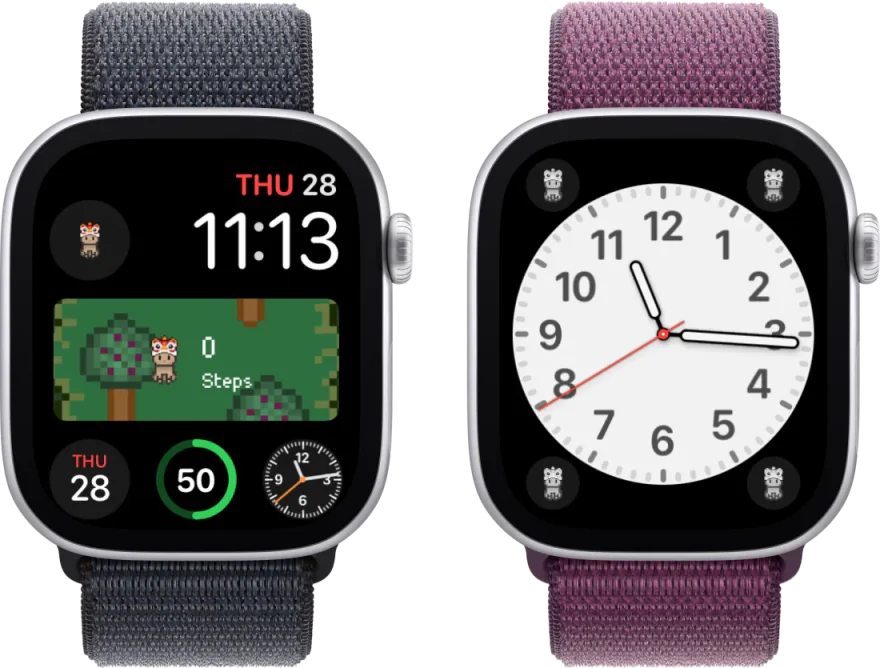
You can keep Belly’s pixel cat beside the time by adding a complication, Apple’s name for a small display from an app. Pick a round slot for just the cat, or a wide slot to see how many steps you’ve walked together.
Belly Team ·
Add your cat to the face
- Install Belly from the App Store on your watch. Open the app and meet your cat.
- Return to the clock. Hold a finger on the face until the editor appears, tap Edit, then swipe left to the complications screen.
- Tap the spot where you want the cat. Turn the Digital Crown to find Belly and select an option that fits that spot. For a step count like the one above, select the wide middle slot on the Modular face and choose Belly: Steps.
- Press the Digital Crown to save, then tap the face to wear it.
Choose what shows beside the time
- Belly: Steps
- A wide rectangle with your cat and today’s step count.
- Belly: Vitals
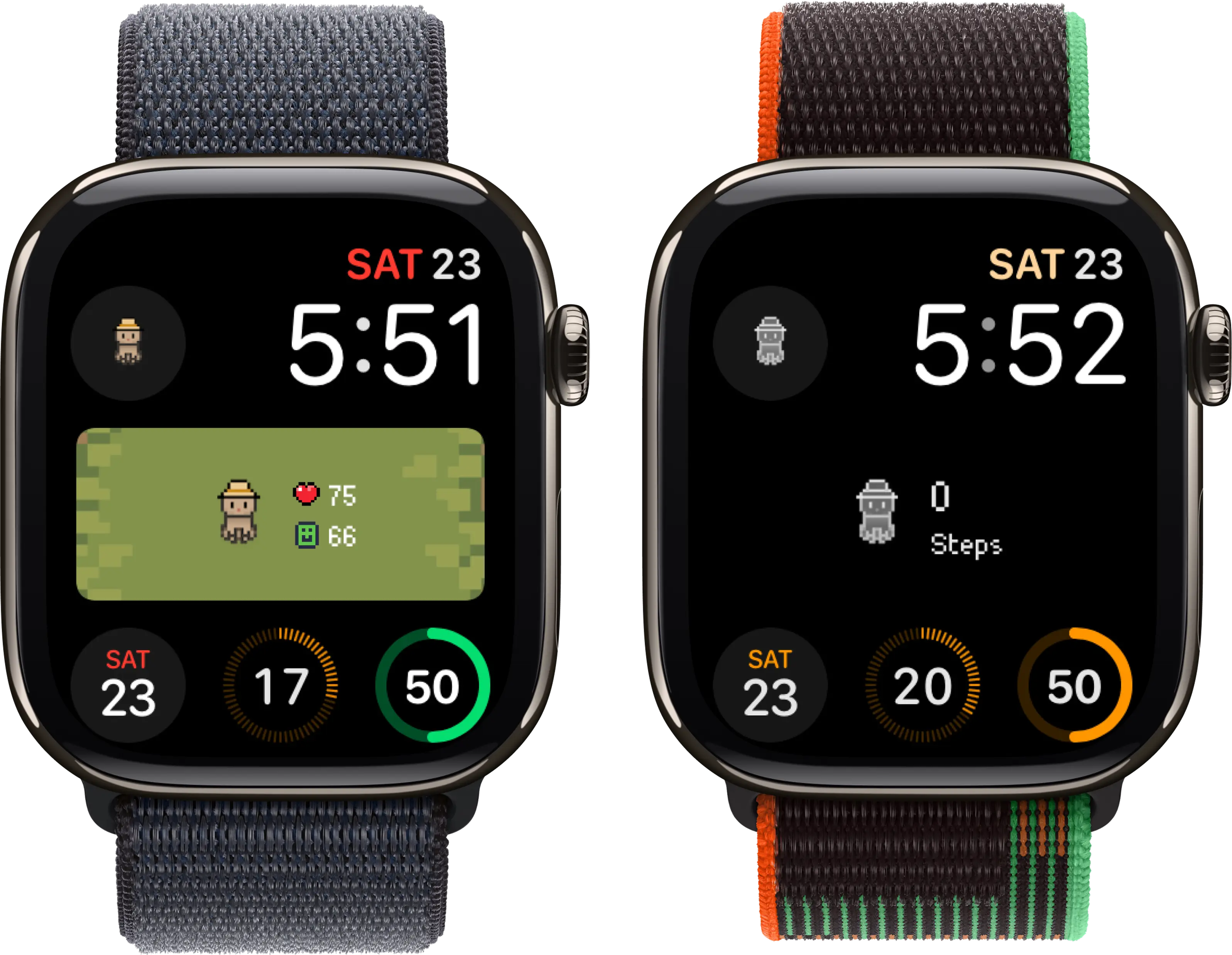
- The same wide slot with two readings instead. The heart is your pet’s health and the smile is its happiness.
- Belly: Circle
- Your cat on its own inside a small round slot. This leaves the wide slot free for something else, like your calendar.
- Pet Corner
- Your cat at the edge of a face that supports corner complications.
If Belly is missing or the count looks old
There’s no complications screen. Try the Modular face. Some faces have no editable slots. Apple illustrates the controls in its watch face guide.
You can see the cat but can’t find Steps or Vitals. Go back one screen and select a wide rectangular slot. Both readings need more room than a circle or corner provides.
The numbers look out of date. Open Belly on the watch to refresh your pet, then return to the face. If the step count also looks wrong inside the app, check Belly’s step permissions.